
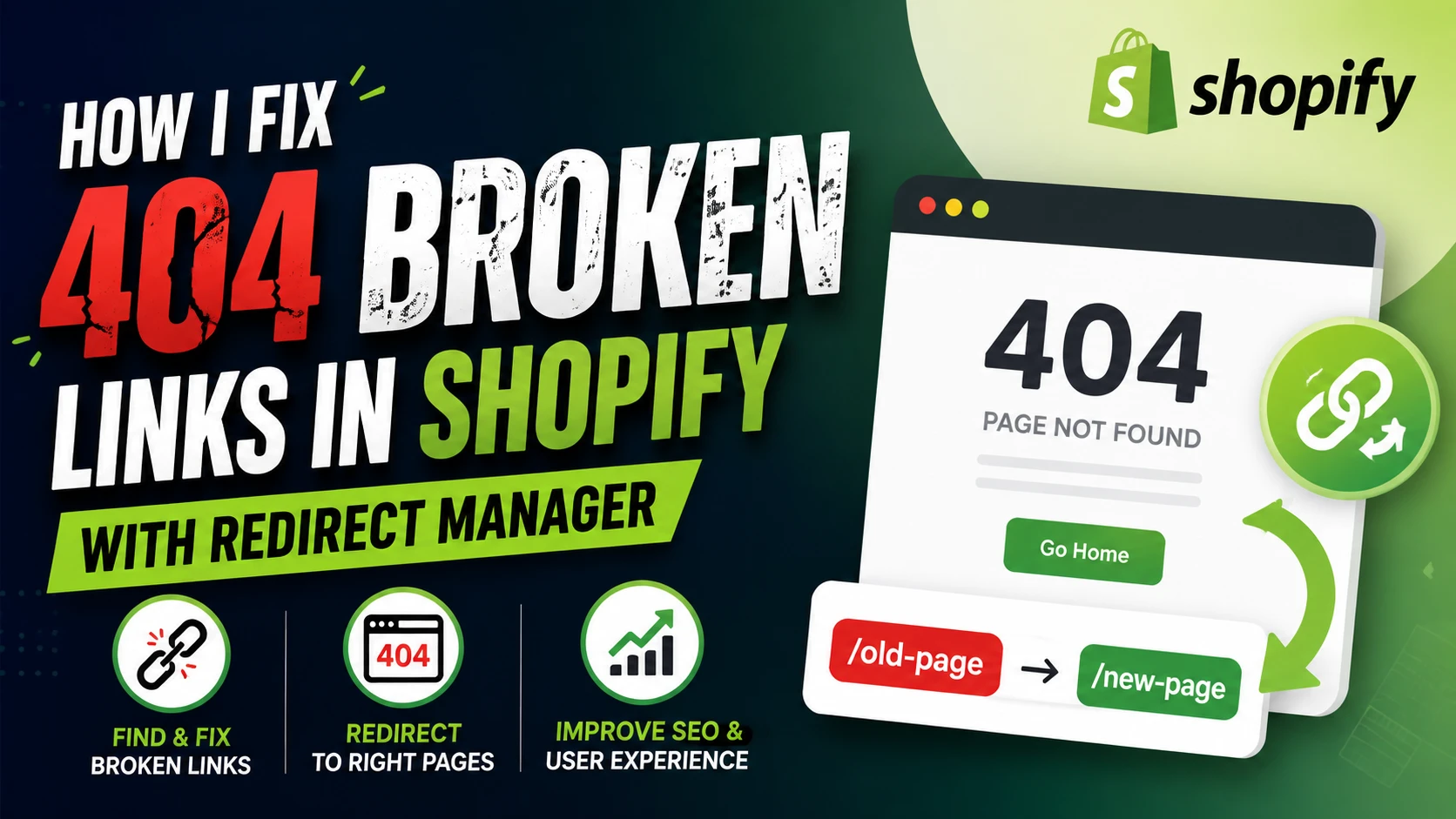
How I Fix 404 Broken Links in Shopify with Redirect Manager
I run few Shopify stores from many years and one problem I face again and again is 404 broken links. If you also see “Page not found” error on your store, don’t worry, I am here to help you. In this post I will tell you how I fix these broken links using Shopify’s own Redirect Manager. You do not need any coding knowledge for this, and I will also not ask you to install extra app if you don’t want to.
What is a 404 Error in Shopify
A 404 error come when someone try to open a page on your store that is not there anymore. Maybe you deleted a product, changed a collection name, or moved a blog post to new URL. When old link is still used somewhere, like in Google search result or in someone bookmark, it will show error page instead of your product.
This is bad for two reason. First, customer get frustrated and leave your store without buying anything. Second, Google don’t like too many broken links and it can hurt your SEO ranking. I learned this the hard way when I saw my organic traffic drop after I renamed many products without fixing old links.
Why Broken Links Happen on Shopify Store
From my experience, these are common reason why 404 error happen on Shopify:
- You delete a product or collection but forget the old URL is still linked from Google or social media
- You change the handle (URL slug) of a product, page, or blog post
- You migrate from another platform like WooCommerce or Wix to Shopify and URL structure change completely
- You remove a discontinued product but people still search for it
- Someone type wrong URL by mistake
If your store is old and you did many changes over the years, chances are high you have some broken links right now without even knowing it.
How I Find Broken Links First
Before fixing anything, I always find out where the broken links are. Here is what I do:
- Check Google Search Console – I open the Google Search Console and go to Pages report. It shows all the URL that Google tried to crawl but got 404 error. This is my main source of broken links.
- Use a broken link checker tool – Sometime I also use tools like Ahrefs Broken Link Checker or Screaming Frog to crawl my whole store and list every dead link.
- Check Shopify Analytics – Shopify also keep record. Under Online Store, you can sometime see 404 pages in your traffic report if you check carefully.
Once I have the list of broken URL, I move to next step which is actual fixing.
Step by Step: Fix 404 with Shopify Redirect Manager
Shopify has built in tool call URL Redirect which most people don’t even notice. It is very simple and I use it all the time. Here how I do it:
Step 1: Go to Redirect Settings
Login to your Shopify admin. On left side menu, click on Online Store, then click Navigation. On top right you will see tab call URL Redirects. Click on that.
Step 2: Click Create URL Redirect
You will see a button “Create URL redirect” on top right corner. Click it and a small box will open.
Step 3: Add Old and New Path
Now in this box you have two field:
- Old path – this is the broken URL, for example /products/old-shirt-name
- New path – this is where you want customer to go instead, for example /products/new-shirt-name or a related collection page
You just paste old path in first box and new path in second box, then click Save. That’s it, redirect is live right away.
Step 4: Bulk Import Redirects with CSV
If you have too many broken links, doing one by one is waste of time. I always use bulk import option. On the URL Redirects page you will see “Import” button. You can upload a CSV file with two column, Redirect from and Redirect to. Shopify will create all redirects in one go. This save me many hours when I migrated one of my client store with more than 300 old links.
You can also export current redirects anytime as CSV to keep backup, which I highly recommend.
Best Practice I Follow While Redirecting
Over time I learn few things that help me a lot:
- Always redirect to relevant page – Don’t just send every broken link to homepage. If old product is gone, redirect to similar product or the collection page. This keep customer happy and interested.
- Avoid redirect chains – Sometime I made mistake of redirecting A to B, then later B to C. This create chain which slow down page and confuse search engine. I always check and update old redirect to point directly to final page.
- Fix internal links too – Redirect is good but better is to go inside your theme and fix any internal link that still point to old URL, like in menu or in blog post content.
- Recheck Search Console monthly – I make it habit to open Search Console once in a month and check for new 404 error. This way I catch problem early before it hurt my SEO much.
- Use 301 not 302 logic – Shopify Redirect Manager automatically do permanent (301 style) redirect, which is correct one for SEO. You don’t need to worry about type, but good to know why it matter, you can read more on this Moz guide on redirects.
Should You Use an App Instead?
Some people ask me if they should use redirect app from Shopify App Store instead of built in tool. My honest answer, for most small and medium store, built in Redirect Manager is more than enough. It is free and fast.
But if your store is very big, with thousands of pages, or you need advance feature like automatic redirect suggestion, then app like Easy Redirects or Redirectify can save time. I personally still prefer doing it manual with CSV bulk upload because I like to control exactly where each link go.
Common Mistake to Avoid
I also want to share mistake I made in past so you don’t repeat it:
- I once redirect too many pages to homepage, thinking it is easy fix. But this confuse both customer and Google, and my bounce rate went up.
- I forgot to remove old redirect after later changing URL again, which created a small mess. Always keep your redirect list clean.
- I didn’t check mobile version link separately, some app based link were still broken even after fixing desktop.
FAQs
No, it is completely free and already built inside every Shopify plan, you don’t need extra app for basic redirect.
It work instantly after you save it. But it may take Google some time, sometime few days to few weeks, to update its own index.
Yes, you can add the collection old path and new path same way as product, it work for pages, blogs, and collections too.
Your customer will leave the store without buying, and Google may lower your ranking over time if too many broken link stay unfixed.
Yes, if not fixed, too many broken links can hurt your site crawl budget and user experience score, which google use for ranking.
Final Words
So this is how I fix 404 broken links in my Shopify store using the simple Redirect Manager. It don’t need any technical skill, just few minutes of your time. I recommend you check your Search Console today and see if you have any broken link waiting to be fixed. Small fix like this can really help your store SEO and keep your customer happy.
If you want more SEO tips and tricks like this, keep visiting my website Rahul Joshi SEO. I also share many SEO ideas on my YouTube channel, you can watch here for more free tips.
Also Read: